
 USD
USD  USD
USD  GBP
GBP  EUR
EUR  INR
INR  ZAR
ZAR  AUD
AUD  CAD
CAD  MYR
MYR  SGD
SGD  THB
THB  HKD
HKD  BRL
BRL  AED
AED 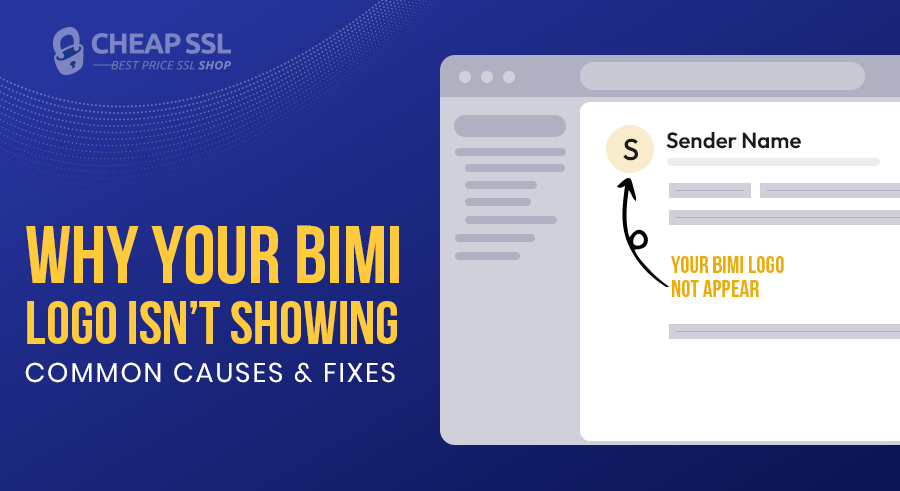
You’ve set up BIMI, published the DNS record, uploaded your SVG logo, and even made sure DMARC is running in enforcement. On paper, everything looks right, but still your BIMI logo is not visible in Gmail, Apple Mail, Yahoo, or any other supported inboxes. It’s one of the common frustrations teams run into after implementing BIMI, and the cause is rarely obvious at first glance.
The truth is that BIMI depends on several moving parts working together: domain alignment, correct SVG formatting, DNS propagation, VMC validation, and the mailbox provider’s own display policies. If any one of these elements is misconfigured or incomplete, your logo won’t appear, even if the authentication setup seems perfect.
Let’s look at what typically breaks BIMI and how you can get your logo to show up. Whether you’re a marketer trying to improve brand visibility or part of an IT/security team managing email authentication, this walkthrough will help you troubleshoot BIMI with clarity.
How BIMI Works?
BIMI (Brand Indicators for Message Identification) allows companies to display a verified brand logo in the supported inboxes. However, BIMI works only if the sender has strong email security in place.
Here is how it works,
- First, you need to ensure the email is secured with Domain-based Message Authentication, Reporting, and Conformance (DMARC).
- Set the DMARC to quarantine or reject for the BIMI to work
- Upload a clutter-free, clean brand logo in square SVG Tiny P/S format.
- Publish a BIMI record using the DNS entry “default._bimi.yourdomain.com”
- You must get a Verified Mark Certificate (VMC) from a trusted Certificate Authority to validate your brand logo cryptographically.
Whenever your brand sends an email to a user, the receiving mail server and inbox provider will verify whether it has DMARC alignment, checks BIMI records, validates SVG logo, and confirms the VMC status. After all of these checks, the inbox decides to display the logo.
The BIMI logo is supported by some of the major email platforms, like

Common BIMI Issues and How to Fix Them
BIMI issues occur due to errors in the DMARC policy setup, the logo file, the VMC certificate, or the DNS record. Even if you configure everything correctly, the inbox provider may not showcase your verified logo due to client-side restrictions.
Here are some of the significant issues with BIMI,
DMARC Policy Problems
By now, you already know that DMARC needs to be set to quarantine or reject, and if it is set to p=none instead, the issues occur. Most email platforms treat your domain as lacking the security measures it must have. So these platforms don’t showcase your verified logo.
Here are some of the common DMARC misconfigurations that you need to avoid:
- Lack of DMARC record
- Policy set to ‘none’
- Domain alignment not enforced
- Incorrect reporting email address
Here is how you can fix it if there are specific misconfigurations:
- Analyze DMARC reports using specialized tools
- Make sure that your emails have passed DKIM and SPF.
Logo File Issues
The files of logo must be of the SVG Tiny-PS format, and an alteration by even a single step on the format can fail BIMI. Particularly, your logo will not be taken as a sign of trust by users.
Some of the common issues with the logo files are:
- File is not in SVG Tiny 1.2 format
- Logo design has gradients, scripts, or linked images
- The brand logo is not in the shape of a square
- File has an invalid XML syntax
- The file is being hosted on a non-HTTPS URL.
To fix these issues, you can:
- Convert the logo using BIMI-approved converters
- Validate if your file has the proper SVG format
- Remove any unsupported elements and re-export the file correctly
- Rehost the logo on a secure HTTPS path
VMC Certificate Problems
A Verified Mark Certificate (VMC) is essential for displaying your brand mark with supported inbox providers. If the VMC certificate is missing, expired, or incorrectly issued, BIMI simply won’t activate.
Some common VMC-related issues are:
- The VMC has expired and hasn’t been renewed
- The certificate is issued to the wrong domain or trademarked organization
- The VMC cannot be accessed by email providers due to hosting issues
- The required trademark verification was incomplete
You can fix these by:
- Checking the current validity of your VMC
- Reissuing or renewing the certificate through an authorized provider
- Ensuring the certificate matches the exact sending domain
- Hosting the VMC in a publicly accessible, HTTPS-secured path
DNS Record Misconfigurations
The BIMI TXT record informs the inbox providers with the location of your logo file and VMC. In case of a malformed DNS entry, the wrong location, or the absence of needed tags, the logo will not be displayed despite all other details being correct.
The most common DNS issues include:
- Incorrect TXT record syntax
- Publishing the record under the wrong host (e.g., missing “default._bimi.yourdomain.com”)
- Using invalid URLs for the logo or VMC
- Extra spaces, missing semicolons, or formatting errors
To fix these issues, you can:
- Verify the exact TXT record format
- Check placement under the correct DNS selector
- Confirm the URLs point to accessible, properly formatted files
- Test the BIMI DNS entry using online BIMI inspection tools
Email Client or Delivery Limitations
Even with a perfect BIMI setup, some email clients will not display your verified logo due to platform restrictions or their own rendering rules.
Some limitations you may encounter include:
- Client-specific differences (Gmail, Yahoo, Apple Mail show BIMI; some versions of Microsoft 365 still do not)
- Firewalls are blocking remote image loading
- Corporate spam filters are stripping external images
- Security policies within enterprise email systems
To fix or mitigate these issues, you can:
- Test how your logo appears across multiple clients and devices
- Review deliverability and firewall logs for blocked assets
- Work with IT teams or email providers to allow remote images from your domain
- Continuously monitor email delivery reports for anomalies
Best Practices for Maintaining BIMI Logo Visibility
To keep your BIMI logo consistently visible, organizations need ongoing maintenance, not just a one-time setup. Here are the recommended best practices:
- Keep DMARC enforcement active and review DMARC reports regularly.
- Validate your SVG logo and VMC certificate periodically.
- Maintain internal documentation for how BIMI is configured.
- Run scheduled checks after any DNS, branding, or email infrastructure changes.
- Monitor inbox provider updates, as BIMI adoption and rules evolve.
Conclusion
BIMI visibility is achievable when the setup is correct and consistently maintained. Most display issues trace back to predictable configuration errors, DMARC, VMC, DNS, or format problems. Systematic checks and compliance with SVG Tiny 1.2 and VMC requirements ensure your logo remains visible and verifiable. Basically, you need to treat BIMI as part of your ongoing email security posture and brand trust strategy. This will ensure your logo remains visible, verifiable, and aligned with a top-tier sender reputation.
Inbox providers require a valid VMC to confirm trademark ownership and brand identity. Without an active certificate, your BIMI logo will not appear, even if other settings are correct.
Related Posts:
- How Verified Mark Certificates Improve Email Security and Brand Recognition
- Why Every Brand Should Consider a Verified Mark Certificate (VMC)
- How to Trademark Your Logo for a Verified Mark Certificate (VMC)
- How to Set Up DMARC & Prepare Your Domain for VMC Certificate
- Top 7 Reasons Your Brand Should Invest in a BIMI Certificate