
 USD
USD  USD
USD  GBP
GBP  EUR
EUR  INR
INR  ZAR
ZAR  AUD
AUD  CAD
CAD  MYR
MYR  SGD
SGD  THB
THB  HKD
HKD  BRL
BRL  AED
AED 
To sign a PowerShell script, import a code signing certificate into the Windows certificate store, retrieve it with Get-ChildItem, and apply it to the script using the Set-AuthenticodeSignature cmdlet along with a timestamp server. This embeds a digital signature block at the end of the .ps1 file, which PowerShell checks against the configured execution policy before the script runs.
The sections below cover certificate prerequisites, the signing commands, signature verification, and how signed scripts behave in Active Directory, standalone, and CI/CD environments.
What You Need Before Signing a PowerShell Script
Before signing a PowerShell script, the environment and certificate setup must already be in place. PowerShell script signing depends on things like system trust settings, where the certificate is stored, and the execution policy in Windows. So, because of that, you need to set everything correctly before signing the script. The setup part is as important as the signing command.
- You need a device with Windows 8.1 or any newer Windows version. PowerShell 5.1 or above should also be installed in the system. Newer versions like PowerShell 7 can also do script signing, but many office and company systems still mostly use PowerShell 5.1 because older admin scripts work properly with it.
- Before signing, you should already have your finalized PowerShell script prepared. This is because PowerShell checks if the file was changed after signing. If you edit the script later, even for a small thing like a space or one new line, the signature will stop working. Then you need to sign the script again.
- You also need a code signing certificate from trusted CA. Some people use self-signed certificates for testing, but those are not good for real use. Other computers usually will not trust them automatically, so you have to manually add trust in every system. A certificate issued by a trusted Certificate Authority provides system-wide trust compatibility without requiring individual trust exceptions on managed systems.
- Modern industry requirements also mandate secure private key storage. Private keys associated with code-signing certificates should be stored on
- Hardware security tokens (YubiKey, SafeNet, etc.)
- Secure cloud-based signing platforms
- Hardware Security Modules
This prevents key extraction and reduces the risk of certificate abuse in supply chain attacks. Once the certificate is issued, import it into the Windows certificate store. The location depends on the scope.
- Current User – Personal Store for user-level signing
- Local Machine – Personal Store for machine-wide or shared administrative usage
Verify if the certificate was correctly installed
Get-ChildItem Cert:\CurrentUser\My -CodeSigningCert
If done correctly, you should be able to see its thumbprint and issue details.
The final setup step is configuring the PowerShell execution policy.
Set-ExecutionPolicy AllSigned
This policy makes sure only signed scripts can execute. Without it, PowerShell may still allow unsigned scripts depending on the existing execution policy, which defeats the purpose of enforcing signature validation.
How to Sign a PowerShell Script Step-by-Step
Once the certificate is installed and the execution policy is set, signing a script takes four commands.
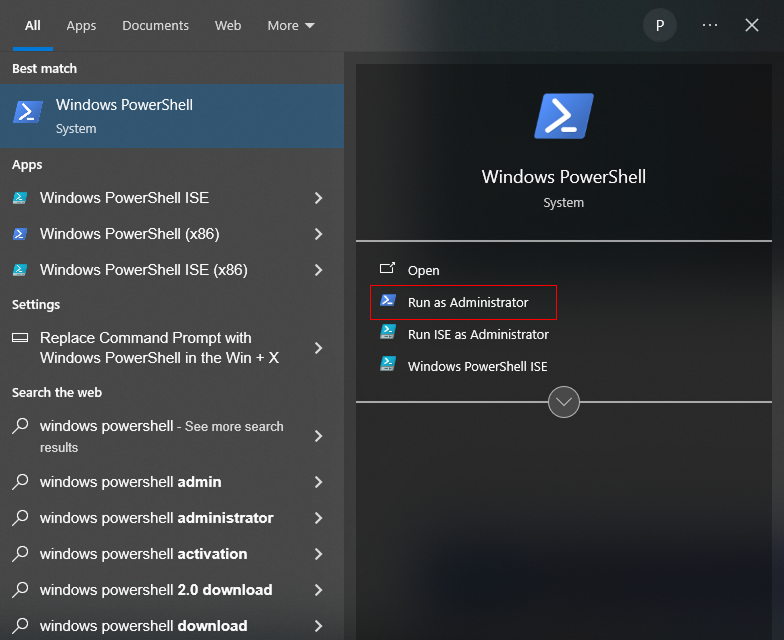
Step 1 – Open PowerShell as Administrator
Launch PowerShell with administrative privileges.
Step 2 – Retrieve Available Code Signing Certificates
Use the command below to list all available certificates
Get-ChildItem Cert:\CurrentUser\My -CodeSigningCert
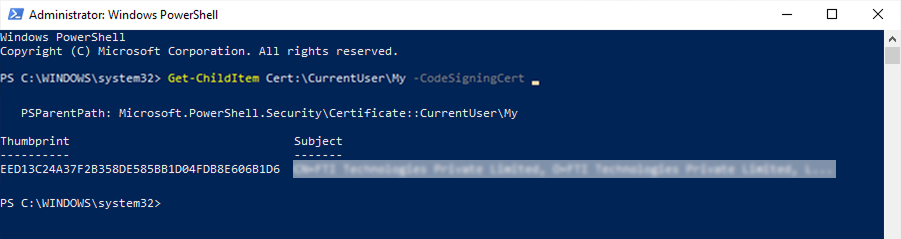
The command searches the personal certificate store and returns certificates capable of code signing.
Typical output includes:
- Thumbprint
- Subject name
- Issuer information
- Expiration date
If multiple certificates exist, carefully identify the correct one.
Step 3 – Assign the Certificate to a Variable
Once the correct certificate is identified, assign it to a PowerShell variable
$cert = Get-ChildItem Cert:\CurrentUser\My -CodeSigningCert | Select-Object -First 1

Administrators often filter by thumbprint instead of relying on Select-Object in actual production environments.
Example:
$cert = Get-ChildItem Cert:\CurrentUser\My\THUMBPRINT
This avoids accidentally selecting the wrong certificate.
Step 4 – Sign the Script Using Set-AuthenticodeSignature
Now apply the signature to the script
Set-AuthenticodeSignature -FilePath "C:\Scripts\TestScript.ps1" -Certificate $cert

This command embeds the digital signature directly into the PowerShell script.
Authenticode signing is used by PowerShell, which combines hashing and certificate-based signing. This guarantees file integrity and publisher authenticity.
Step 5 – Add a Timestamp Server
Timestamping is optional but recommended. Signatures become invalid once the certificate expires if timestamping is not used.
The signature remains valid with timestamping because the systems are able to verify if the script was signed while the certificate was active.
Example:
Set-AuthenticodeSignature `
-FilePath "C:\Scripts\TestScript.ps1" `
-Certificate $cert `
-TimestampServer "http://timestamp.digicert.com"
The signing time is cryptographically recorded by the timestamp server during the signing operation.
Step 6 – What Signing Actually Changes
PowerShell appends a digital signature block directly to the end of the file when a script is signed.
You will see something similar to:
# SIG # Begin signature block
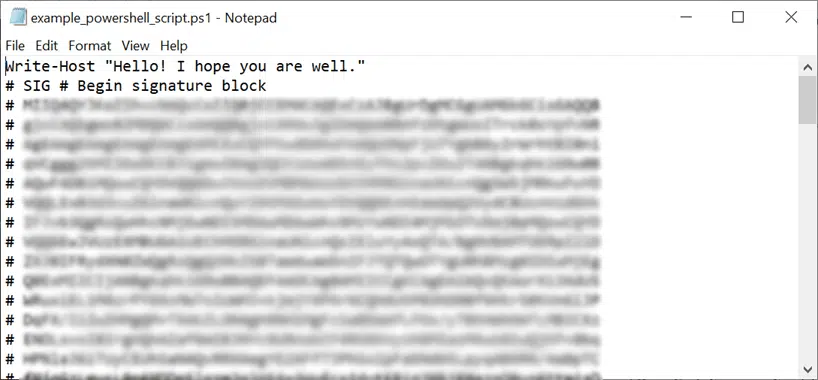
Followed by encoded certificate and signature data.
This block is what PowerShell validates during execution.
Because the hash covers the entire script content, any edit after signing invalidates the signature immediately. Even adding a comment requires re-signing the file.
How to Verify a PowerShell Script Signature
Verify the signature before deploying or distributing the script.
Most reliable verification method is PowerShell itself.
Get-AuthenticodeSignature "C:\Scripts\TestScript.ps1"
PowerShell returns detailed signature information including:
- Signer certificate
- Timestamp status
- Signature validation result
A successful result typically shows:
| Status | What It Means |
|---|---|
| Valid | The script is signed, signature matches the file contents, and certificate chain is trusted on this system. |
| HashMismatch | A hash mismatch usually indicates the script was modified after signing. |
| NotTrusted | The signature is valid, but the signing certificate chain is not trusted on that system. |
| UnknownError | Signature couldn’t be validated because the certificate or its chain can’t be located, or the required certificate stores aren’t accessible. |
| NotSigned | The script has no digital signature block at all. |
Verification can also be performed through the Windows graphical interface.
Open Properties by right-clicking the.ps1 file, then select the Digital Signatures tab. If the tab does not show up, then the script is unsigned or the signature was applied incorrectly.
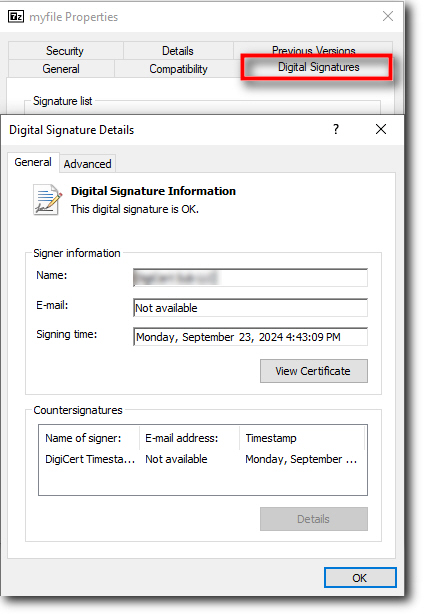
Verification should always happen before deployment or distribution. Signing alone is not enough if the target systems cannot validate the trust chain properly.
Run Signed PowerShell Scripts Across Different Environments
A signed PowerShell script only runs cleanly if the signing certificate is trusted by the target machine. How that trust is established depends on the environment.
-
Active Directory Environments
In domain environments, the recommended approach is distributing trusted certificates through Microsoft Active Directory Group Policy.
Administrators typically deploy:
- Root CA certificates
- Intermediate certificates
- Trusted Publisher certificates
to the appropriate certificate stores across all domain-joined systems. This eliminates the need for manual certificate imports on every machine.
Trusted Publishers deployment is especially important because it suppresses the “Do you trust this publisher?” prompt that users may otherwise encounter during first execution.
-
Non-AD (Standalone) Environments
For standalone systems or smaller environments without Active Directory, certificates must be distributed manually.
The process usually involves:
- Exporting the root or publisher certificate using Microsoft Management Console (MMC)
- Importing it into:
- Trusted Root Certification Authorities
- Trusted Publishers
on the destination machine.
Without this trust configuration, PowerShell may reject the script even if the signature itself is technically valid.
-
CI/CD Integration
In mature DevOps environments, script signing is usually automated inside CI/CD pipelines.
This guarantee,
- Every build is signed consistently
- Human error is minimized
- Unsigned scripts never reach production
Modern pipelines often integrate directly with
- Hardware Security Modules
- Azure Key Vault
- Secure Signing Services
This model improves both operational efficiency and software supply chain security.
What to Look for in a Code Signing Certificate
Where the certificate comes from matters as much as the certificate itself. A self-signed certificate works fine for testing on your own machine, but it carries no chain of trust — other systems won’t recognize it without a manual exception. A certificate from a trusted Certificate Authority sits inside a chain that Windows, macOS, and major browsers already trust, so a signed script is recognized without extra setup. That’s why CA-issued certificates are the standard for scripts shared across an organization or distributed to outside users.
Before choosing one, check for a trusted root chain, Authenticode compatibility for Set-AuthenticodeSignature, and a validity period. As of March 2026, CA/Browser Forum rules cap new code signing certificates at 460 days (about 15 months). Buying from an established provider takes care of the trust chain from the start, since the root is already embedded on the systems running the script.
Here are few certificates that meet these criteria:
| Product | Price | Validation |
|---|---|---|
| Comodo Code Signing Certificate | $226.67/yr | Organization Validation |
| Sectigo Code Signing Certificate | $226.67/yr | Organization Validation |
| Comodo EV Code Signing Certificate | $298.00/yr | Extended Validation |
| Sectigo EV Code Signing Certificate | $298.00/yr | Extended Validation |
| DigiCert Code Signing Certificate | $500.00/yr | Organization Validation |
| DigiCert EV Code Signing Certificate | $700.00/yr | Extended Validation |
Compare pricing on all available code signing certificates
Conclusion
Trust, integrity, and controlled execution are at the core of PowerShell script signing. A properly signed script helps companies lower the risk of unauthorized alterations and script execution by confirming publisher identity and file integrity. The procedure itself is really simple, but whether the deployment is truly safe at scale depends on secure certificate handling, trusted distribution, and verification. Code signing is becoming an essential component of modern Windows security procedures as businesses use PowerShell to automate more administrative chores.
Frequently Asked Questions About Signing PowerShell Scripts
Why does a signed PowerShell script still show as “not trusted”?
Do I need a timestamp server when signing a PowerShell script?
Can I use a self-signed certificate for PowerShell scripts in production?
What happens if I edit a script after signing it?
Secure Your PowerShell Scripts with a Trusted Signature
Code Signing Certificates help organizations verify script authenticity, enforce trusted execution policies, and reduce the risk of unauthorized modifications.
Related Posts: