

 USD
USD  USD
USD  GBP
GBP  EUR
EUR  INR
INR  ZAR
ZAR  AUD
AUD  CAD
CAD  MYR
MYR  SGD
SGD  THB
THB  HKD
HKD  BRL
BRL  AED
AED 
The “self-signed certificate in certificate chain” error means your browser, application, or command-line client could not build a trusted certificate path from the certificate it received to a Certificate Authority (CA) it trusts.
It does not necessarily mean the website itself uses a self-signed certificate. The problem could be an incorrect server chain, an untrusted internal CA, a corporate proxy, or a different trust store used by the application making the connection.
For a public website, a self-signed certificate should be replaced with a certificate issued by a publicly trusted CA. But if the site already has a trusted certificate, replacing it may not solve the problem – first identify where the certificate chain is breaking.
Quick Diagnosis: Where Is the Problem?
| Where you’re seeing the error | Likely area to investigate | What to check first |
|---|---|---|
| Public website, across multiple devices or networks | Server certificate chain | Certificate and intermediate certificates installed on the server |
| Only one browser or device | Local trust configuration | System clock, trust store, proxy, or security software |
| Only on a work network | Corporate proxy or HTTPS inspection | Whether the required corporate CA is trusted |
| Browser works, but Git/cURL/Python/Node.js fails | Application trust store | CA configuration used by that application |
| Host works, but Docker fails | Container trust store | CA certificates available inside the container |
| Internal service using a private CA | Private CA trust | Whether the approved internal root CA is trusted by the client |
What Does ‘Self-Signed Certificate in Certificate Chain’ Mean?
SSL certificates rely on a chain of trust:
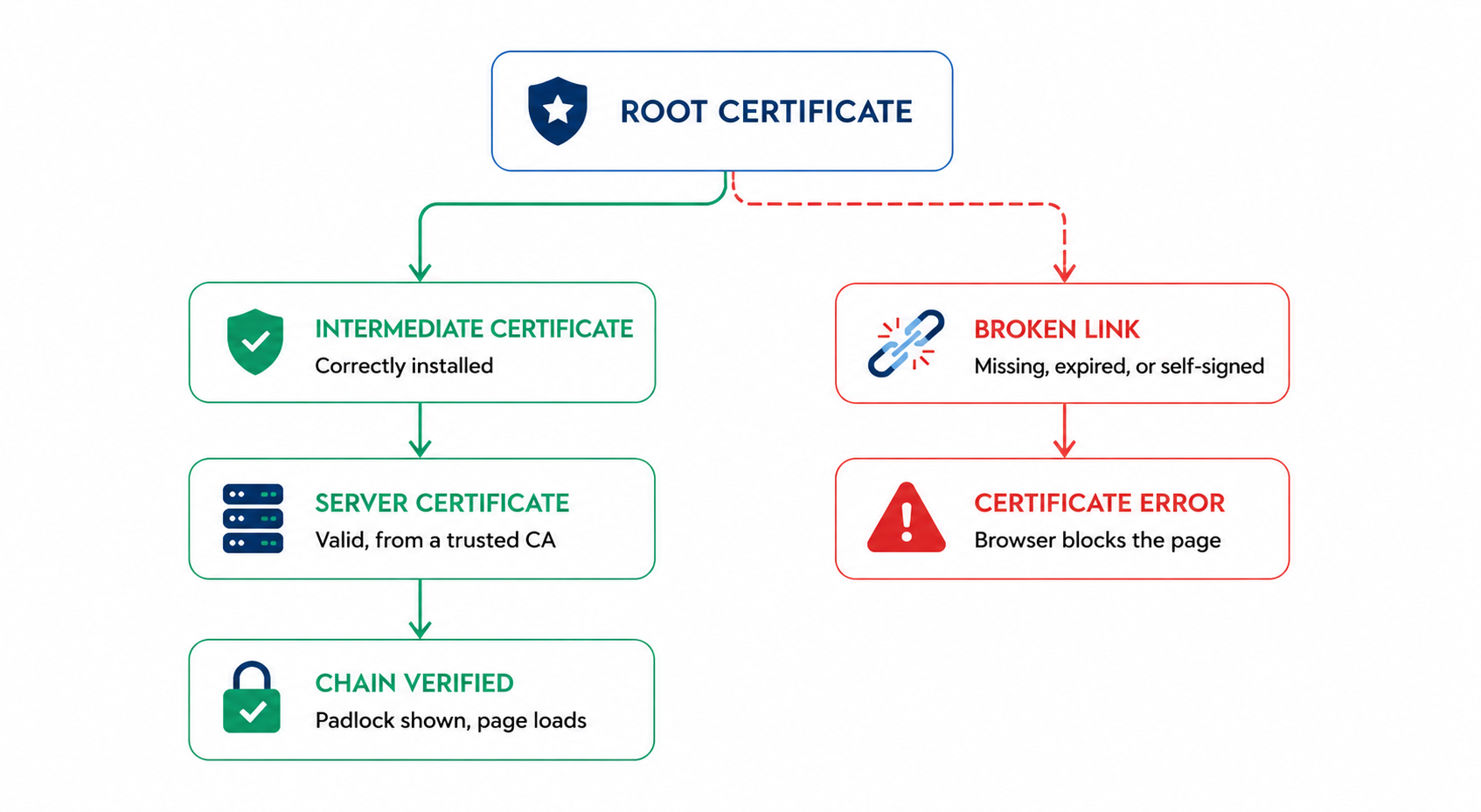
The server certificate identifies the domain. It is typically issued through an intermediate CA, and the certificate path ultimately leads to a root CA trusted by the browser, operating system, or application.
There is an important distinction here: root CA certificates are normally self-signed. Their presence is not inherently a problem.
The error occurs when the client cannot build a valid certificate path to a root CA it trusts. That might happen because an unexpected self-signed certificate is being presented, an intermediate certificate is missing or incorrect, or the client does not trust the CA involved.
What is a Self-Signed Certificate?
A self-signed certificate is an TLS certificate that’s signed by the same entity that created it, rather than by a trusted Certificate Authority. This makes it fast and free to generate, which is useful for internal, development, or testing environments.
However, browsers and operating systems don’t recognize it as trustworthy, so it triggers security warnings when it appears on a public-facing site.
Why Does ‘Self-Signed Certificate in Certificate Chain’ Error Happen?
Self-Signed Certificate in Certificate Chain error happens because your browser can’t trace the certificate back to a source it trusts. Usually that’s caused by a self-signed certificate, a missing intermediate, an untrusted proxy or private CA, or a mismatched trust store.
-
A Self-signed Certificate is Being Used on a Public Website
A self signed certificate from testing or staging has ended up in a certificate chain that’s serving live traffic. Since there’s no CA behind it, the browser rejects the whole chain.
-
Missing or Incomplete Intermediate Certificates
Your server needs to present its intermediate certificate along with your domain certificate. If it only sends the domain certificate, the browser can’t bridge the gap to the root and treats the connection as untrusted, even though your actual certificate is valid.
This can happen after certificate installation, renewal, server migration, or configuration changes.
-
A Corporate Proxy Is Re-Signing HTTPS Traffic
Some enterprise security systems inspect encrypted traffic by intercepting HTTPS connections and presenting certificates signed by an organization-controlled CA.
A managed browser may already trust that CA while another application, virtual machine, or container does not. The destination website’s public certificate can therefore be valid even though a particular client reports a chain error.
-
A Private or Internal CA Isn’t Trusted
Organizations may use their own CA for internal applications and services.
In that environment, the certificate can be legitimate, but the connecting device or application must trust the organization’s root CA. If that trust has not been configured, certificate validation fails.
-
The Application Uses a Different Trust Store
Your browser, operating system, programming runtime, command-line client and containers do not necessarily use the same source of CA certificates.
That is why a URL can work normally in a browser but fail when accessed through Git, cURL, Python, Node.js, or an application running inside Docker.
-
An Expired Certificate Somewhere in the Chain
Any certificate in the chain past its expiration date – server, intermediate, or root breaks trust for the whole chain.
How to Check the Certificate Chain
Before replacing certificates or changing trust settings, inspect what the server is actually presenting.
OpenSSL can display the certificates sent during a TLS handshake:
openssl s_client -connect example.com:443 -servername example.com -showcerts
Replace example.com with the hostname you are testing.
Check:
- the server certificate;
- its issuer;
- the intermediate certificate or certificates;
- whether an unexpected certificate appears in the chain; and
- the verification result reported by OpenSSL.
The -showcerts option shows the certificates sent by the server. The presence of certificates in that output does not itself prove that the chain has successfully verified, so review the verification result as well.
For a public website, you can also use an SSL analysis tool to inspect the deployed certificate, intermediate chain, expiration dates, and configuration.
How to Fix ‘Self-Signed Certificate in Certificate Chain’
The correct fix depends on where trust breaks.
If You’re a Website Owner or Server Administrator
If you are responsible for a public website:
- Check which certificate is actually installed. Confirm that the live endpoint is using the intended CA-issued certificate.
- Install the complete certificate chain. Configure the server with the leaf certificate and required intermediate certificate according to your CA or server documentation.
- Replace a self-signed public certificate. If the live website actually uses a self-signed certificate, replace it with one issued by a publicly trusted CA.
- Confirm the certificate and private key match.
- Reload or restart the web server if required after changing its certificate configuration.
- Test externally after deployment. Do not rely only on the browser or device used to configure the server.
If you need to replace a self-signed certificate on a public-facing website, choose a trusted SSL certificate that matches the domains and validation requirements of the site.
If You See the Error in Your Browser
First determine whether the problem is limited to your device.
Try the same website from another browser, device, or network. If the error appears everywhere, the website’s certificate configuration is more likely to be responsible.
If the problem is local:
- confirm your system date, time, and time zone;
- check whether a VPN or proxy is involved;
- determine whether antivirus or enterprise security software is inspecting HTTPS connections; and
- check whether the appropriate CA is trusted by the device.
Do not lower browser or operating-system security settings to suppress the warning.
If You Use a Private or Internal CA
For an intentionally private environment, obtain the appropriate root CA certificate through your organization’s approved IT, security, or PKI process and configure it only on systems that are supposed to trust that CA.
Do not install an unfamiliar root certificate simply because doing so removes the error. A trusted root CA can influence which certificates that system accepts as valid.
Fixing the Error in Git
If git clone, git pull, or git push produces this error, Git may not trust the CA associated with the Git server or an intermediary such as a corporate proxy.
Check that the system CA store is current. If your organization uses an approved private CA, configure Git or the underlying system to use the appropriate CA certificate. GIT_SSL_CAINFO, for example, can point Git to the required CA file.
Avoid using the following as a permanent fix:
git config --global http.sslVerify false
It disables certificate verification rather than repairing the trust configuration.
Fixing the Error in cURL
If cURL does not trust the CA required for the connection, you can specify an approved CA certificate directly:
curl --cacert /path/to/company-ca.pem https://example.com
Using -k or –insecure skips certificate verification. That may help isolate a verification problem during troubleshooting, but it should not be used as the permanent solution.
Fixing the Error in Python
Python applications can encounter certificate-verification errors when the CA required for the connection is not available through the trust configuration being used by the application.
Determine which CA bundle the application is using first. If the required public CA information is outdated, update the relevant CA package. If the application must trust an approved private or corporate CA, configure the appropriate bundle through the application’s supported trust mechanism, such as REQUESTS_CA_BUNDLE where applicable.
Avoid leaving verify=False in production code to work around the error.
Fixing the Error in Node.js and npm
Node.js may use a trust configuration that differs from your browser or operating system.
For an approved organization-specific CA, Node.js supports adding CA certificates through NODE_EXTRA_CA_CERTS:
NODE_EXTRA_CA_CERTS=/path/to/company-ca.pem node app.js
npm can use a specified CA bundle through cafile:
npm config set cafile /path/to/company-ca.pem
Disabling npm’s SSL verification does not repair the missing trust relationship and should not be used as the permanent solution.
Fixing the Error in Docker
A connection that succeeds on the host but fails inside a Docker container often means the required CA is not available in the container’s trust store.
For example, a Debian-based image may install an approved CA using:
RUN apt-get update && apt-get install -y ca-certificates
COPY company-ca.crt /usr/local/share/ca-certificates/
RUN update-ca-certificates
The exact process depends on the container’s operating system.
Only add a private or corporate CA when you know its origin and the container is intended to trust it.
Why Does It Work in My Browser but Fail in Git, Python, or Docker?
Because a successful connection in one client does not mean every client on the device uses the same trusted CA store.
Your browser may rely on the operating system or enterprise-managed trust configuration, while Git, a programming runtime, or a container may use a separate CA bundle.
If the website works in one client and fails in another, compare the trust configuration of the two clients before assuming the website’s SSL certificate needs to be replaced.
How to Prevent ‘Self-Signed Certificate in Certificate Chain’ Error
- Reserve self signed certificates strictly for internal or development environments
- Always install the full chain, this is the single most common cause of this error.
- Keep a record of every certificate’s expiry date and renew ahead of time.
- Double check the chain immediately after any renewal – a fresh certificate installed without its matching intermediate will trigger this same error.
- Don’t carry test or staging certificates over into a production certificate bundle during a migration or server move.
- Run a periodic scan with an SSL checker tool, so you catch a broken chain before a visitor does.
If You’re a Visitor Seeing this on Someone Else’s Site
If this shows up on a site you don’t manage, the problem is almost always on their end and not something you can fully fix from your side. A few things worth trying anyway: clear your browser’s cache and cookies, check that your system clock is set correctly (an incorrect date can make a valid certificate look expired), and try disabling browser extensions one at a time in case one of them is interfering with the connection.
Frequently Asked Questions
Is a self-signed certificate safe to use?
It’s fine for internal testing or development, but it’s not appropriate for a public-facing site – browsers will flag it as untrusted, which damages visitor confidence and can drive people away.
Why does Docker fail when my browser works?
Docker containers can use a CA trust store separate from the host system. Your browser or host may already trust the required CA while the container does not.
Check the CA configuration inside the container before changing the website’s certificate.
Can I disable SSL verification to fix the error?
Disabling verification can suppress the error, but it does not fix the certificate chain or trust problem.
Options such as cURL’s –insecure, Python’s verify=False, or disabling SSL verification in Git remove an important part of TLS authentication. Use them, if necessary, only for controlled diagnosis — not as the permanent configuration.
How do I identify which certificate is causing the problem?
Inspect the certificates presented during the TLS handshake with OpenSSL or a trusted SSL/TLS analysis tool.
Check the leaf certificate, its issuer, each intermediate certificate, and the verification result to find where the expected path to a trusted root stops.
Do I need to install the root CA certificate on my public web server?
Normally, no. A public web server generally sends its leaf certificate and required intermediate certificate(s). The connecting client maintains its own trusted root CA store and uses it to complete the trust path.
Conclusion
The “self-signed certificate in certificate chain” error means the client could not establish a trusted certificate path. The cause may be a self-signed certificate on a public endpoint, an incorrect intermediate chain, an internal CA the client does not trust, a corporate proxy, or a separate application trust store.
For public websites, use a certificate issued by a publicly trusted CA and configure its certificate chain correctly. For controlled private environments, manage CA trust through the appropriate internal process.
Either way, diagnose where the trust path breaks and correct it there. Disabling certificate verification only hides the problem.
Don’t Let a Broken Certificate Chain Cost You Visitors
If your site’s throwing trust warnings, a self-signed or incomplete cert chain is usually why. Get a CA-signed SSL certificate from CheapSSLShop — pre-validated, browser-trusted, and issued with the full chain configured correctly from day one.
Related Posts:
- 5 Best Practices for SSL/TLS Certificate and Private Key Security
- 7 Common SSL Mistakes and How to Avoid Them
- How to fix “SSL Handshake Failed Error Code 525” (5 Proven solutions)
- 12 Proven Ways to Fix NET::ERR_CERT_COMMON_NAME_INVALID Error